Secure Wi‑Fi for Medical Office in Houston: Segment Right
Secure Wi‑Fi for Medical Office in Houston: Segment Right
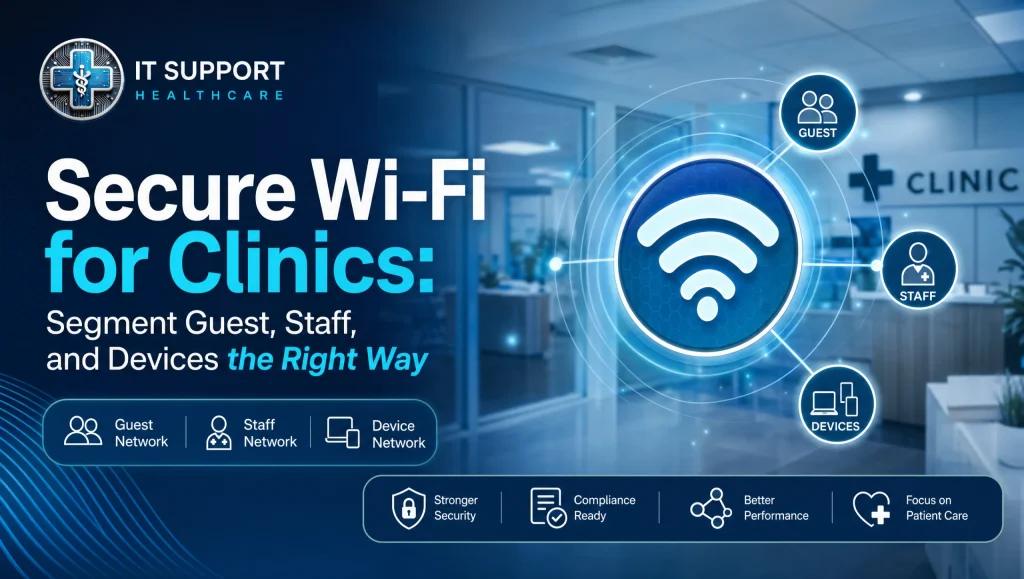
Secure Wi‑Fi for Medical Office in Houston: Segment Guest, Staff, and Devices the Right Way
If your clinic’s Wi‑Fi is one big, flat network, you’re inviting risk and slowdowns. In busy Houston practices, secure Wi‑Fi for medical office environments means separating guest, staff, and clinical/IoT devices so attackers can’t move sideways and your EHR, imaging, and dental software stay responsive. The good news: with a practical VLAN and SSID design, you can get there without disrupting care.
Secure Wi‑Fi for a medical office in one sentence
Secure Wi‑Fi for medical office means using separate SSIDs and VLANs to isolate guest, staff, and clinical/IoT devices, enforcing least‑privilege firewall rules and strong authentication (WPA2/3‑Enterprise) so PHI stays protected and clinical apps remain fast and reliable.
Key steps at a glance
- Create three SSIDs mapped to distinct VLANs: Guest, Staff, Clinical/IoT
- Use WPA2/3‑Enterprise with RADIUS for Staff; rotate keys and disable WPS
- Enforce firewall rules: Guest → Internet only; IoT → allowlist to EHR/imaging
- Enable client isolation on Guest; add rate‑limits and DNS filtering
- Optimize performance: channel planning, 802.11r/k/v roaming, QoS for voice/imaging
- Monitor and log: 24/7 alerts, firmware updates, and tested backups of configs
What “Secure Wi‑Fi for Medical Office” really means
HIPAA‑aware wireless basics: confidentiality, integrity, and availability
- Confidentiality: Only authorized users and devices should reach PHI systems (EHR, PACS, imaging servers). Separate SSIDs/VLANs and strong authentication are the foundation.
- Integrity: Traffic to and from clinical systems must be encrypted; use modern cipher suites and keep firmware current to prevent tampering.
- Availability: Providers need charting and imaging to work right now. Design Wi‑Fi for roaming, coverage, and resilience so care isn’t delayed.
Common risks in clinics: flat networks, shared passwords, and unmanaged IoT
- Flat Wi‑Fi: One SSID for everything makes it easy for a compromised device to reach PHI systems.
- Shared PSK: If staff and guests use the same password, it will leak and can’t be tied to a user.
- Unmanaged IoT: Cameras, printers, Dexis/Sidexis workstations, and smart TVs often share the same network as EHRs, expanding the attack surface.
- Shadow SSIDs: Consumer‑grade “guest” modes without VLAN isolation can still expose internal resources if misconfigured.
The case for network segmentation in healthcare
VLANs in a clinic: guest, staff, and medical/IoT device tiers
- Guest VLAN: Internet only, no access to internal subnets, and client‑to‑client isolation.
- Staff VLAN: Authenticated employee devices with restricted, role‑based access to applications.
- Clinical/IoT VLAN: Imaging workstations, sensors, printers, and scanners with fixed addressing and strict allowlists to EHR/imaging servers.
Role‑based access control and least privilege across SSIDs
- Staff Wi‑Fi should use directory‑backed authentication (WPA2/3‑Enterprise) so access follows roles, not shared keys.
- Device access to servers should be allowlisted by protocol and port; avoid “allow any” rules between VLANs.
How segmentation preserves EHR, imaging, and dental software performance
- Broadcast storms and chatty IoT traffic stay off the staff Wi‑Fi.
- QoS and bandwidth limits keep guest streaming from starving clinical apps.
- Shorter routing paths and fewer competing devices reduce latency for Dentrix, Eaglesoft, Open Dental, and imaging transfers.
Reference design: SSIDs, VLANs, and firewall rules
(Consider adding a simple diagram in your documentation; alt text: secure Wi‑Fi for medical office VLAN diagram.)
SSID 1—Guest
- VLAN: Guest (e.g., VLAN 20)
- Access: Internet only; block all RFC1918 subnets (10.0.0.0/8, 172.16/12, 192.168/16)
- Controls: Client isolation, captive portal/T&Cs, per‑client rate‑limits, DNS filtering
- Use case: Patients and visitors; no access to printers or internal apps
SSID 2—Staff
- VLAN: Staff (e.g., VLAN 30)
- Security: WPA2‑Enterprise or WPA3‑Enterprise with RADIUS/Active Directory or Azure AD sync
- Access: Only to required apps (EHR, PMS, VoIP), limited east‑west access between staff devices
- Controls: Device posture checks if available (OS up‑to‑date, disk encryption), periodic credential rotation
SSID 3—Clinical Devices/IoT
- VLAN: Clinical/IoT (e.g., VLAN 40)
- Addressing: DHCP reservations for medical devices; static where vendors require
- Access: No Internet except vendor update services; allowlist to EHR/PACS/imaging servers
- Services: mDNS/Bonjour proxy if AirPrint/scanners are required, but restrict discovery to specific services and destinations
- Examples: Dexis/Sidexis workstations, imaging sensors, label printers, exam room tablets locked to a single app
Optional—Contractors/Partners
- VLAN: Vendors/Contractors (e.g., VLAN 50)
- Access: Time‑bound, sponsor‑approved, portal‑based or PPSK (per‑person passkeys)
- Controls: Logging and screen recordings where policy allows; Internet only by default
Firewall policy examples (high level) between VLANs
- Guest → Any Internal: Deny
- Guest → Internet: Allow (with DNS filtering and rate limits)
- Staff → Clinical Servers (EHR/PACS/Practice Mgmt): Allow specific ports (HTTPS, SMB/print if needed, HL7 interfaces), Deny all else
- Staff → Staff: Deny except essential services (VoIP, screen sharing if approved)
- Clinical/IoT → Clinical Servers: Allow only required ports to specific IPs, Deny all else
- Clinical/IoT → Internet: Deny; Allow vendor update URLs/IPs as needed
- Any → Network Management VLAN: Deny except from admin network
Considering a firewall refresh or rule cleanup? Start with choosing firewalls for clinics.
Wi‑Fi security controls that matter
WPA3 where possible, WPA2‑Enterprise with RADIUS for compatibility
- Prefer WPA3‑Enterprise for modern hardware; fall back to WPA2‑Enterprise for older scanners and carts.
- Avoid WPA2‑PSK for Staff; if you must use PSK for limited devices, use unique PPSKs per user/device.
Separate admin management network; disable WPS; rotate keys
- Put access point controllers, switches, and firewalls on a locked‑down management VLAN accessible only from IT devices.
- Disable WPS everywhere; rotate guest portal keys and certificates on a schedule.
802.1X for Wi‑Fi and wired ports; device onboarding workflows
- Extend 802.1X to wired ports in imaging rooms to prevent unauthorized plug‑ins.
- Use onboarding portals for BYOD with short‑lived certificates or PPSKs and clear offboarding steps.
DNS filtering, DHCP reservations for medical devices, NTP, secure logging
- Enforce DNS filtering to block malware domains and typosquats.
- Use DHCP reservations to keep device IPs consistent for allowlists and documentation.
- Point all gear to reliable NTP and central logging; forward logs to a SIEM or monitoring platform for 24/7 alerting.
Performance and reliability in busy clinics
Channel planning, band steering, 6 GHz readiness, airtime fairness
- Survey your space: Houston buildings mix drywall, brick, and glass; density and reflections vary by floor.
- Use non‑overlapping channels (2.4 GHz: 1/6/11; 5 GHz: plan DFS with care near medical equipment); enable band steering to keep capable devices on 5 GHz/6 GHz.
- Turn on airtime fairness to prevent a few slow devices from dominating the air.
Roaming for providers: fast transition (802.11r/k/v) and site survey tips
- Enable 802.11r/k/v on the Staff SSID for smooth roaming during rounds.
- Keep AP transmit power moderate and overlap cells 15–20% for seamless handoffs.
- Place APs in hallways and treatment areas away from X‑ray shielding; test with the actual tablets/handsets your clinicians use.
QoS: prioritize voice/telehealth and imaging transfers without starving EHR
- Mark VoIP and telehealth as EF/voice priority end‑to‑end.
- Use application‑aware shaping so large imaging transfers are prioritized but rate‑limited to preserve EHR responsiveness.
- Separate scheduled image syncs from clinic rush hours where possible.
IoT security for medical and dental devices
Isolate Dexis/Sidexis imaging systems; allowlist only required ports
- Put Dexis/Sidexis workstations and sensors in the Clinical/IoT VLAN.
- Allow only required connections to the image server/PACS over defined ports and protocols; block SMB browsing and generic file shares unless vendor‑required and documented.
- If printing is needed, limit Bonjour/mDNS to approved printers and rooms.
Monitor device behavior; firmware lifecycle; vendor coordination
- Baseline normal traffic per device; alert on anomalies like sudden Internet beacons.
- Track firmware versions and schedule updates after hours; document vendor maintenance windows.
- Coordinate with vendor support for required IPs/ports; test changes in a maintenance window before going live.
Myth vs. fact: clinic Wi‑Fi
- Myth: “A single strong password is enough for our clinic Wi‑Fi.”
Fact: Shared PSKs can’t enforce least privilege or trace access. Use WPA2/3‑Enterprise for Staff and segment with VLANs. - Myth: “Guest networks on my router are isolated by default.”
Fact: Many “guest” modes still allow discovery of local devices if VLANs and firewall rules aren’t configured. - Myth: “IoT devices need full Internet to work.”
Fact: Most clinical devices operate fine with specific allowlists to internal servers and limited update access.
Implementation checklist (Houston‑friendly)
Inventory, label, map VLANs; create SSIDs; test access rules
- Inventory all Wi‑Fi and wired devices; note make, model, MAC, and clinical role.
- Define VLAN IDs/subnets and DHCP scopes; reserve addresses for medical devices.
- Create SSIDs and map to VLANs; apply per‑SSID security and bandwidth policies.
- Write firewall rules for inter‑VLAN traffic and test with real workflows (EHR login, Dexis image capture, VoIP calls).
Backup configs; document; train staff; simulate failover and guest spikes
- Back up switch/AP/firewall configs and store off‑site; test restore procedures.
- Document SSIDs, VLANs, addressing, and escalation steps; keep a printed copy in the network closet.
- Train front desk on guest onboarding and basic troubleshooting.
- Simulate a busy waiting room to validate guest throttling; walk the site to test roaming and voice quality.
Real practice insight from Houston
In a mid‑size Houston dental office, we split Wi‑Fi into Guest, Staff, and a tightly controlled Imaging VLAN. After mapping Dexis devices to reserved DHCP addresses and allowlisting only the image server, the team noticed their charts loaded more consistently during peak hours. The change took place after hours with no chairtime disruption.
When to call a Houston medical IT partner
Signals you need help
- Roaming hiccups: Providers drop Wi‑Fi when moving between operatories or floors.
- PHI access bleed: Guest or IoT devices can see printers, NAS shares, or EHR portals.
- Ransomware risk: Old firmware, flat networks, no DNS filtering, or missing backups.
- Vendor friction: Imaging updates break connectivity or require complex firewall changes.
How we support local clinical software
- We design HIPAA‑aware VLANs and Wi‑Fi for Dentrix, Eaglesoft, and Open Dental so staff access remains simple but contained.
- For imaging stacks like Dexis and Sidexis, we isolate traffic and allowlist only required services to keep transfers quick and predictable.
- Our team provides 24/7 monitoring, encryption standards, tested off‑site backups, ransomware protection, and risk assessments so you can focus on patients.
Next steps
Start with a free practice checkup
- Get a no‑pressure review of your current Wi‑Fi, firewall rules, and VLAN layout. We’ll highlight quick wins and longer‑term improvements.
Tie Wi‑Fi to resilience
- Back up controller, switch, and firewall configs; ensure your disaster recovery plan includes Wi‑Fi infrastructure and vendor contact lists. For a deeper dive, see disaster recovery for healthcare: https://itsupport.healthcare/it-disaster-recovery-ultimate-it-disast/
Plan for continuous improvement
- Schedule quarterly Wi‑Fi health checks, firmware reviews, and penetration testing in outpatient settings. If you’re evaluating broader changes, our HIPAA compliance and cybersecurity guide offers a helpful framework: https://itsupport.healthcare/hipaa-compliance-ultimate-guide/
Local help when you need it
- Based in Houston, we support clinics across Houston, Katy, and Sugar Land. Our calm, friendly team typically connects you with a real human in under 15 minutes, with many issues resolved remotely. We offer flat monthly pricing with no long‑term contracts.
Internal resources you may find useful
- For a wider view of managed services and network management, explore HIPAA‑compliant healthcare IT support in Houston: https://itsupport.healthcare/
- Considering a firewall refresh or rule cleanup? Start with choosing firewalls for clinics: https://itsupport.healthcare/it-support-ultimate-guide-choosing/
- Need practical security hygiene tips? See network security tips for healthcare: https://itsupport.healthcare/it-support-essential-network-secu/
- Planning a support transition? Learn how to switch IT support with minimal disruption: https://itsupport.healthcare/it-support-seamless-it-support/
Conclusion: Secure Wi‑Fi for Medical Office in Houston—segment right to stay safe and fast
Thoughtful segmentation is the simplest, most effective move you can make: one SSID and VLAN for guests, one for staff with WPA2/3‑Enterprise, and one for clinical/IoT devices with strict allowlists. Add strong authentication, solid firewall rules, and performance tuning, and you’ll cut attack paths while keeping your EHR, imaging, and dental apps snappy. If you’d like help designing or validating your plan, IT Support Healthcare is here for Houston clinics with a free practice checkup, no long‑term contracts, and a calm, expert approach that lets your team focus on patients.
Frequently Asked Questions
Q1: What does “secure Wi‑Fi for medical office” actually mean?
Short answer: Separate Guest, Staff, and Clinical/IoT networks with strong authentication and least‑privilege rules.
Expanded: Secure Wi‑Fi for medical office environments uses distinct SSIDs mapped to VLANs for guests, staff, and clinical/IoT devices. Staff Wi‑Fi uses WPA2/3‑Enterprise with RADIUS, while firewall rules strictly limit traffic so PHI systems stay protected and clinical apps remain fast and reliable.
Q2: Why should we segment Wi‑Fi into Guest, Staff, and Clinical/IoT?
Short answer: To block attacker “sideways” movement and keep EHR/imaging responsive.
Expanded: A flat network lets a compromised device reach sensitive systems. Segmentation isolates guests to Internet‑only, authenticates staff with role‑based access, and places clinical/IoT devices behind strict allowlists to EHR/PACS/imaging servers—reducing risk and congestion.
Q3: How do SSIDs and VLANs work together in a clinic?
Short answer: Each SSID maps to a dedicated VLAN with tailored policies.
Expanded: The Guest SSID maps to a Guest VLAN (Internet‑only, client isolation). Staff maps to a Staff VLAN (WPA2/3‑Enterprise, limited app access). Clinical devices map to a Clinical/IoT VLAN (fixed addressing, allowlisted ports to servers, minimal Internet). Firewalls enforce what can talk across VLANs.
Q4: What authentication should Staff Wi‑Fi use?
Short answer: WPA2/3‑Enterprise with RADIUS tied to your directory.
Expanded: Use WPA3‑Enterprise where possible or WPA2‑Enterprise for older hardware, backed by RADIUS with Active Directory/Azure AD. Avoid shared PSKs for staff; if legacy devices require a PSK, use unique per‑person/device passkeys (PPSK) and rotate credentials regularly.
Q5: How do we secure imaging and IoT devices like Dexis or Sidexis?
Short answer: Put them on a Clinical/IoT VLAN with strict allowlists and minimal Internet.
Expanded: Assign DHCP reservations or static IPs, allow only the required ports to your image server/PACS, block generic file shares unless vendor‑required, and tightly scope mDNS/Bonjour to needed printers/scanners. Monitor behavior and schedule firmware updates after hours.
Q6: Will segmentation improve EHR and dental software performance?
Short answer: Usually yes—less noise and prioritized traffic mean snappier apps.
Expanded: Segmentation keeps chatty IoT and guest streaming off staff Wi‑Fi. With QoS, voice/telehealth and imaging get priority without starving EHR. Proper channel planning, roaming (802.11r/k/v), and bandwidth limits further reduce latency for Dentrix, Eaglesoft, Open Dental, and imaging transfers.
Q7: What firewall rules should we start with between VLANs?
Short answer: Deny by default; allow only what’s required.
Expanded: Common baselines: Guest → Internal: Deny; Guest → Internet: Allow with DNS filtering/rate limits. Staff → Clinical servers: Allow specific ports/protocols; limit east‑west staff access. Clinical/IoT → Servers: Allow required ports to specific IPs; Internet: Deny except vendor update endpoints. Lock down the management VLAN.
Q8: How do we ensure smooth roaming and reliable voice/telehealth?
Short answer: Enable 802.11r/k/v, plan channels, and apply QoS end‑to‑end.
Expanded: Use non‑overlapping channels, moderate AP power, and 15–20% cell overlap. Enable fast transitions for Staff SSID. Mark VoIP/telehealth as EF and apply application‑aware shaping so large imaging transfers don’t impact charting. Test with the actual tablets/handsets clinicians use.
Q9: Are consumer “guest network” modes enough for clinics?
Short answer: Often no—many don’t truly isolate internal resources.
Expanded: Some guest modes still permit device discovery or leak access without VLAN‑level isolation and firewall rules. For healthcare, use real VLANs, client isolation, and explicit deny rules. Consider a business‑class firewall; if you’re refreshing, see choosing firewalls for clinics: https://itsupport.healthcare/it-support-ultimate-guide-choosing/
Q10: How can a Houston clinic get started without disrupting care?
Short answer: Inventory, design VLANs/SSIDs, test after hours—get a free checkup.
Expanded: Begin with a device inventory and VLAN/SSID plan, then apply firewall rules and test critical workflows (EHR login, imaging capture, VoIP) after hours. IT Support Healthcare offers a free practice checkup and supports clinics in Houston, Katy, and Sugar Land with calm, no‑pressure help: https://itsupport.healthcare/
Q11: When should we call a Houston medical IT partner?
Short answer: If roaming drops, guest/IoT can see PHI systems, or firmware/backups are lagging.
Expanded: Signals include Wi‑Fi drops between operatories, guest or IoT access bleeding into printers/shares/EHR, flat networks, missing DNS filtering, or untested backups. For broader resilience planning, see disaster recovery for healthcare: https://itsupport.healthcare/it-disaster-recovery-ultimate-it-disast/
Q12: Real‑world example—what changed after segmentation?
Short answer: More consistent charting and smoother imaging during rush hours.
Expanded: In a mid‑size Houston dental office, splitting Wi‑Fi into Guest, Staff, and a tightly controlled Imaging VLAN—with DHCP reservations and allowlists to the image server—reduced congestion and made charts feel more consistent. The cutover happened after hours with no chairtime disruption.
If you’re ready to strengthen your clinic’s network, explore HIPAA‑compliant healthcare IT support in Houston and schedule your free practice checkup today.